How to add the Motiv widget to your Home Screen
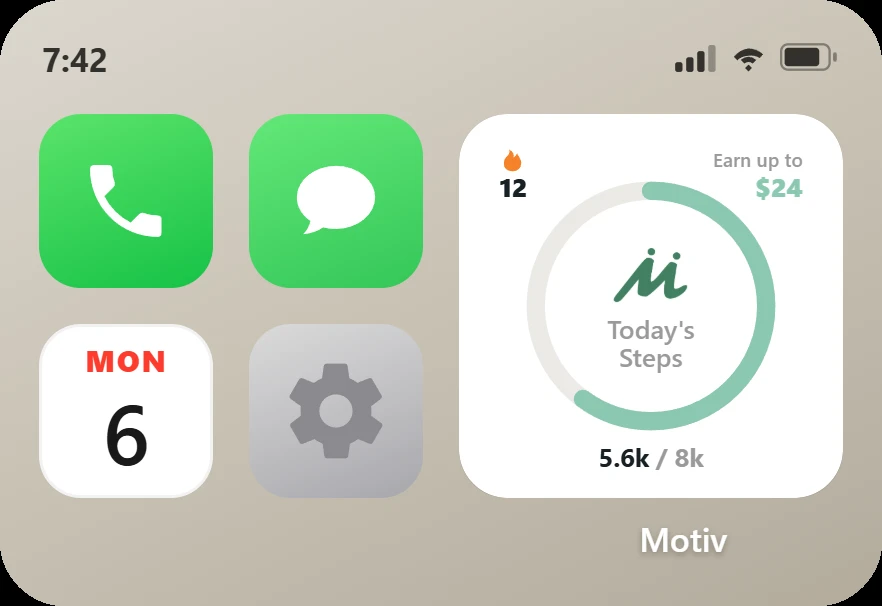
The Motiv widget puts today's steps, your streak and what you can still earn on your Home Screen.
Before you start
Open Motiv and sign in at least once. An app's widgets only show up in the iPhone widget list after the app has been opened.
Add the widget
- Touch and hold an empty area of your Home Screen until the apps jiggle.
- Tap Edit in the top-left corner, then Add Widget. On older versions of iOS, tap the + button instead.
- Search for Motiv.
- Choose the Motiv widget. In the list it is called Motiv Activity.
- Tap Add Widget.
- Drag it where you will see it most, then tap Done.
The widget comes in one size, the small square, and goes on the Home Screen. There is no Lock Screen version.
What it shows
- A ring that fills as you get closer to today's step goal, with your steps and goal underneath.
- Your current streak.
- Earn up to, the mission rewards still open to you today.
- A Claim button when a mission reward is ready. Tap it to go straight to your missions.
Complete the widget mission
- Add the widget using the steps above.
- Open Motiv and go to the widget mission.
- Tap the button to confirm you have added it, then tap Claim.
If you see Widget not detected, the widget has not checked in yet. Go to your Home Screen, make sure the widget is showing, then open Motiv and try again. Adding the Motiv app icon to your Home Screen does not count. It has to be the widget.
The widget shows only the Motiv logo
That means it has no data yet, or you are signed out. Open Motiv, sign in, and let the Home tab load.
The widget shows an old step count
The widget shows what Motiv last loaded. It does not read Apple Health by itself, so it updates when you open Motiv. Open the app and swipe down on the Home tab, and the widget follows.
Remove the widget
- Touch and hold the widget.
- Tap Remove Widget, then Remove.